How to add a 3D virtual store to your WooCommerce shop
A step-by-step guide to turning your WooCommerce shop into a 3D store shoppers walk through, using your existing products and photos. It takes about ten minutes, costs nothing, and needs no 3D models or coding.
A 3D virtual store lets shoppers walk through your shop instead of scrolling a grid: your categories become aisles, your products stand on shelves, and a trolley carries what they pick to your normal checkout. This guide sets one up on WooCommerce with the free Aisleza plugin.
Before you start#
You need:
- WordPress 6.5 or later and PHP 7.4 or later.
- WooCommerce 8.5 or later, with products in at least one product category. Categories become aisles, so tidy them first if you like.
- About ten minutes.
No account, API key or outside service is needed: the 3D engine ships inside the plugin and runs on your own site. If you’d like to see the result first, walk the live demo.
Tip: try it on a staging copy of your site first if you have one. The store starts closed, so it's safe on a live shop too.
Step 1: Install the plugin#
- In your WordPress admin, go to Plugins → Add New Plugin.
- Search for Aisleza.
- Press Install Now on Aisleza – 3D Virtual Store for WooCommerce, then Activate.
A new Aisleza menu appears in the admin sidebar.
Step 2: Open the setup card#
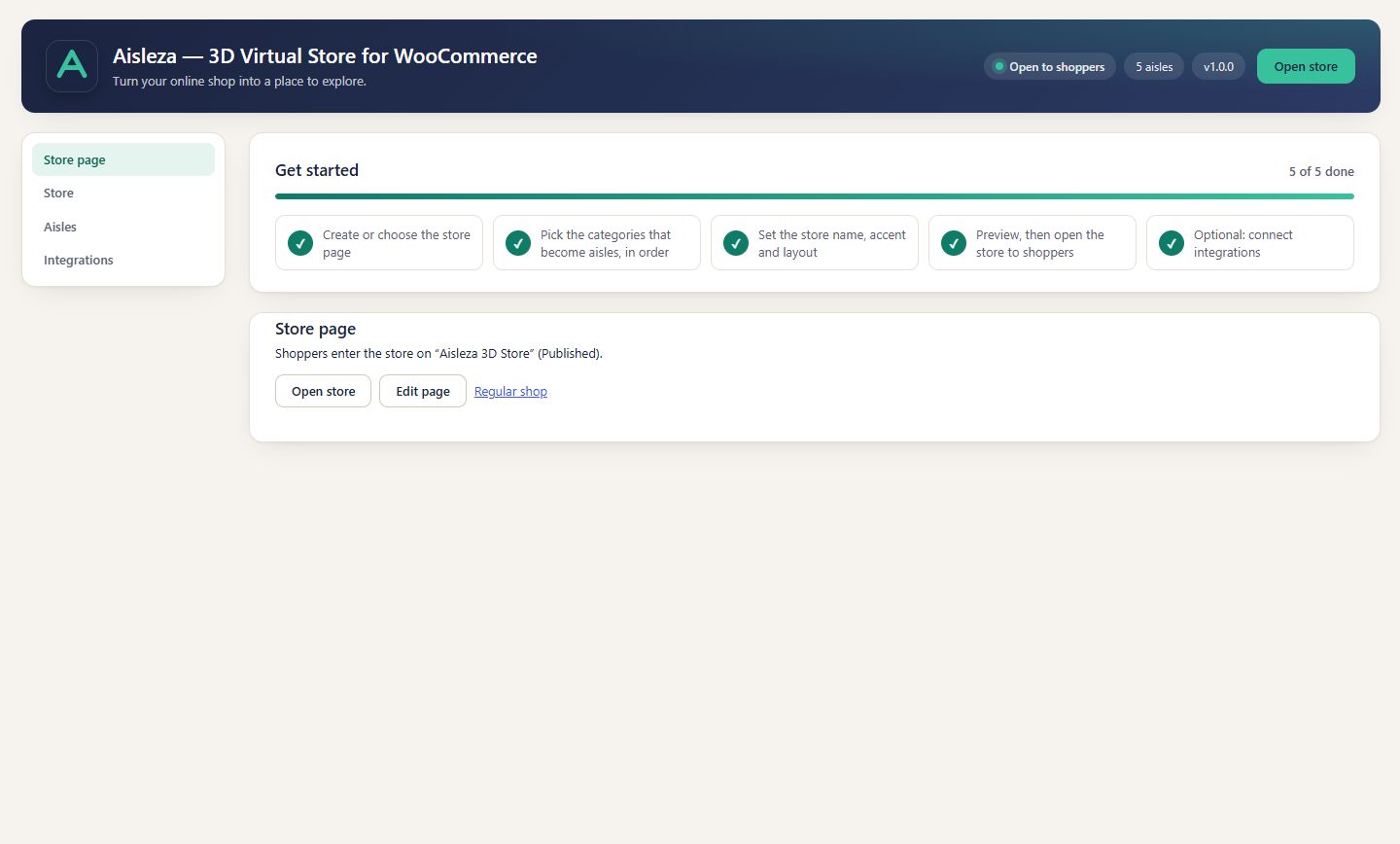
Go to Aisleza → Settings. A setup card lists five steps with a progress bar. You can do them in any order; each one ticks itself off.
Step 3: Create the store page#
On the Store page tab, press Create virtual store page. Aisleza creates a page for the store that starts as a draft, so nobody sees it yet.
Already have a page you want to use? Choose it from the list instead. Any page works as long as it contains the [aisleza] shortcode.
Step 4: Choose the categories that become aisles#
On the Aisles tab, tick each category that should be an aisle and give it a position number: the lowest number is the first aisle from the entrance. You can rename an aisle’s sign, pick its colour and show the category image on it.
Leave out categories you don’t want in the store, such as gift cards or a “sale” bucket. Tick at least one: until you do, the store shows a short “no aisles yet” message.
Step 5: Name the store and pick a layout#
On the Store tab:
- Store name appears on the shop front and the trolley handle.
- Brand accent colours the shop front, signs and buttons; your site’s fonts and text style carry over.
- Layout: choose Full window (recommended: the store fills the screen) or Inside my theme (the store sits in your page with your header and footer).
Step 6: Preview and walk your store#
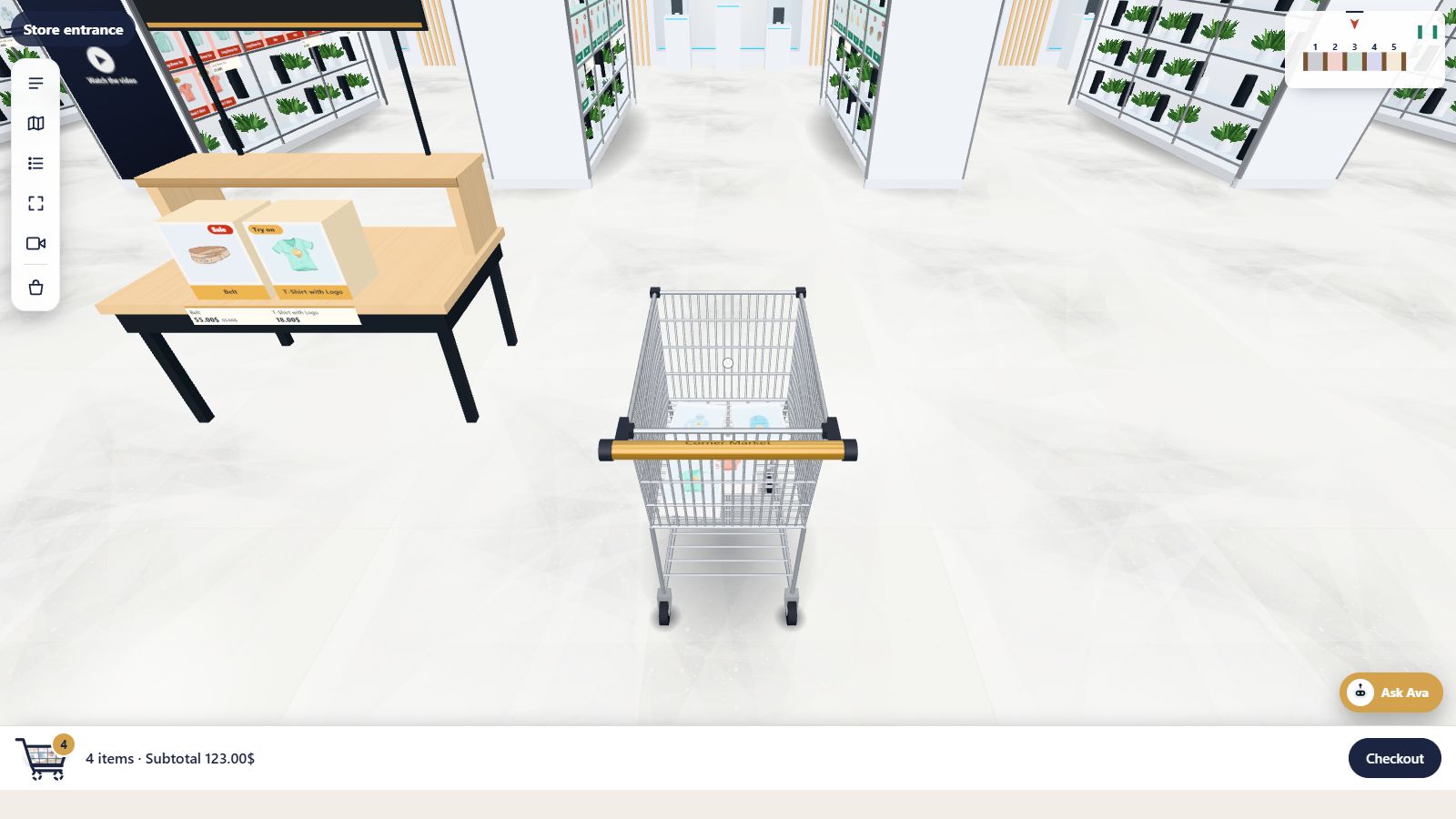
Press Preview store. While you’re logged in you can walk the store even though it’s still closed and the page is a draft. Try it the way a shopper would:
- Walk with the arrow keys or W A S D, or drag to look around. On a phone, use the joystick.
- Click a product to open its panel with the gallery, price and options, then add it to the trolley.
- Walk to the checkout counter and check the trolley goes to your normal checkout.
- Open the toolbar for the aisle drawer, search, store map and the shelf-wall and list views.
Check it on your phone too. Most of your shoppers will visit there.
Step 7: Open it to shoppers#
- Tick Open the virtual store to shoppers and save.
- Publish the store page.
- Help shoppers find it: add the page to your menu, or turn on the shop banner so it appears on your shop pages.
That’s it: your shop now has a store people can walk into.
Ideas for after launch#
- Tell your customers. A short video of you walking the store makes a great social post or email.
- Keep aisles tidy. Product photos on plain backgrounds look best on the shelves.
- Go further with Pro. Aisleza Pro adds eight more interiors, Ava the shopping assistant, a golden box coupon hunt, seasonal makeovers, promo tables and aisle-end displays, and shopper insights that show which aisles people visit.
Not on WooCommerce? The same store is available for Shopify, Wix, BigCommerce, Magento, PrestaShop, OpenCart, Shopware and Squarespace. For the full detail of every setting, see the first-store guide in the docs.
Questions people ask
How long does it take to add a 3D store to WooCommerce?
About ten minutes for a first store: install the free Aisleza plugin, create the store page, pick the categories that become aisles, preview it and publish.
Do I need coding skills or 3D models?
No. Everything is done from the plugin’s settings page, and the store is built from the categories, products and photos you already have in WooCommerce.
Will the 3D store change my theme, cart or checkout?
No. The store lives on its own page. Products shoppers add go into your normal WooCommerce cart, and they pay at your usual checkout.
What do I need to run it?
WordPress 6.5 or later, WooCommerce 8.5 or later with at least one product category, and PHP 7.4 or later. Shoppers need a modern browser; without 3D support they automatically get a flat shelf view.
Can I try it before my shoppers see it?
Yes. The store page starts as a draft and the store stays closed until you open it. While you’re logged in you can preview and walk it as much as you like.
More guides
- Virtual showroom software that builds itself from your catalogMost virtual showroom software asks for 3D models, a design project and a monthly fee before a single shopper walks in. Here's what to look …
- The best 3D virtual store plugins for WooCommerce in 2026Want shoppers to walk through your WooCommerce shop in 3D? Here is every plugin that does it today, what each one is really like, and which …
- Shopify virtual store apps comparedLooking for a 3D or virtual store app for Shopify? Several well-known names have left the App Store, and the ones that remain work in very …
- 3D product viewer vs 3D virtual store: which does your shop need?Both get called "3D for your online shop", but they do very different jobs. One lets shoppers spin a single product; the other lets them …
- What does a virtual showroom cost? Options for small shops, comparedA virtual showroom can cost nothing or half a million dollars. Here's what each kind costs in 2026, from free plugins to custom agency …
 Ready when you are
Give your shoppers
somewhere to go
Start free with the walk-in store. Add Pro for every skin, Ava, camera views and merchandising.