Toolbar, drawer & full screen
The floating toolbar, the aisle drawer, and making the store fill the window or the whole screen.
The floating toolbar#
A slim rail floats on the left edge of the store. Hover a button to see its name.
| Button | What it does |
|---|---|
| Aisles | Opens the aisle drawer |
| Search | Searches products (when Ava is on, search moves into Ava) |
| Store map | A floor plan to jump anywhere |
| List view | A plain, accessible list of products |
| Fill / Full screen | Makes the store fill the window, or the whole screen |
| Camera view (Pro) | Switches between the three camera views |
| Regular shop | Back to your normal shop |
On the right, the Ask button opens Ava (Pro), and at the bottom the cart bar shows the item count, subtotal and Checkout.
The aisle drawer#
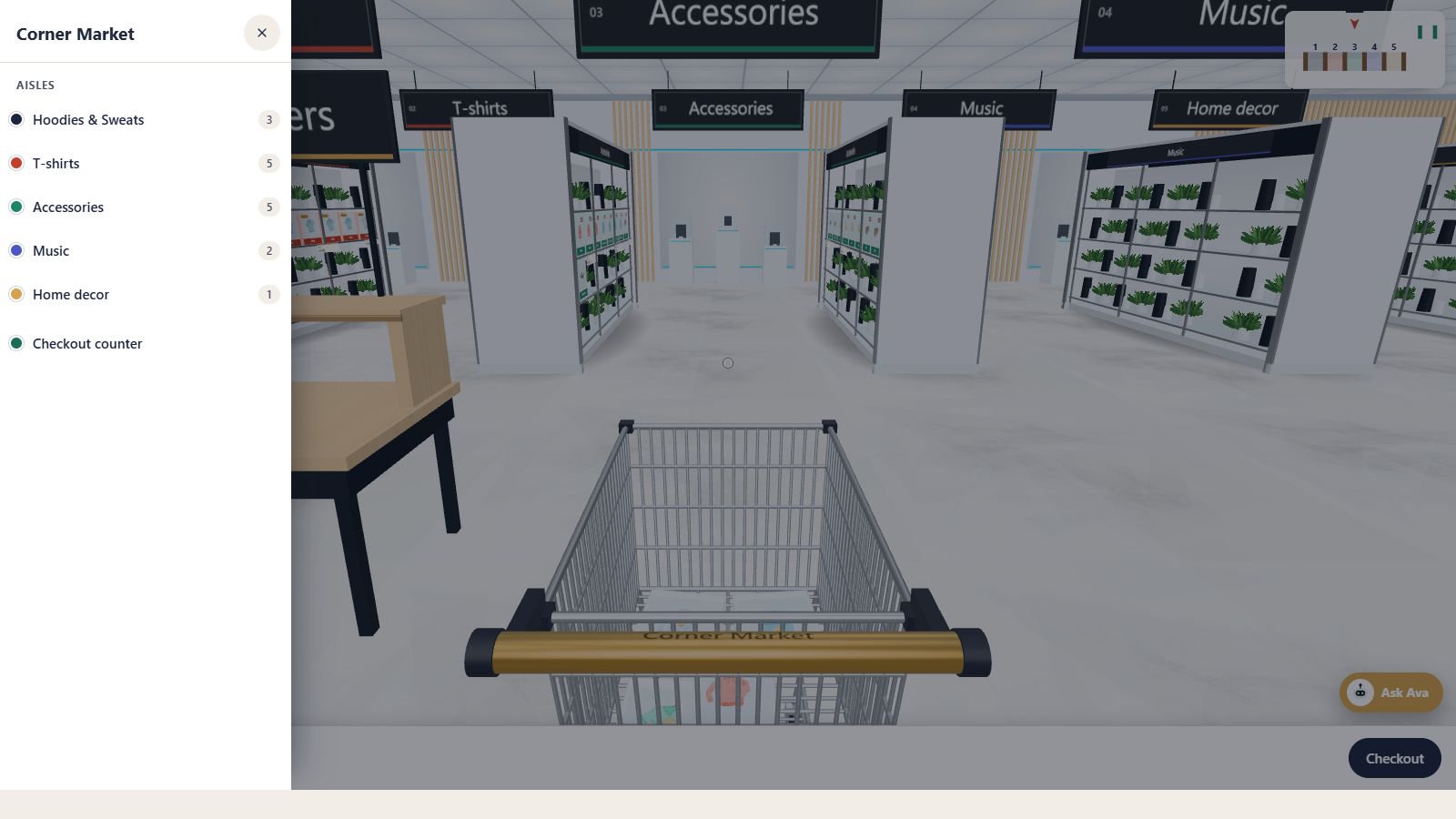
Slides in from the left with the store name, every aisle with its sign colour and product count, and the Checkout counter. Tap an aisle and the shopper is taken straight there. Close it with the × or Esc .
Fill the window and full screen#
- Fill: the store covers the browser window; the page around it is hidden.
- Full screen: the store takes the whole screen on devices that allow it. Esc leaves full screen.
To open the store filling the window as soon as shoppers walk in, choose Fill the browser window when shoppers walk in on the Store page tab.
Big screens#
On large and 4K monitors Aisleza keeps a pixel budget and adapts sharpness while the shopper moves, so full screen stays smooth. See Performance.