Docs › Store designer
The store designer
Make the chosen skin your own: floor, walls, ceiling, shelving, light and decor, with a live 3D preview.
Business and AgencyThis feature is part of Aisleza Pro. See the plans.
Go to Aisleza → Store designer → Customizer, or press Customize on the skin your store wears in the Skins tab. Controls are on the left, a live 3D preview of your store on the right.
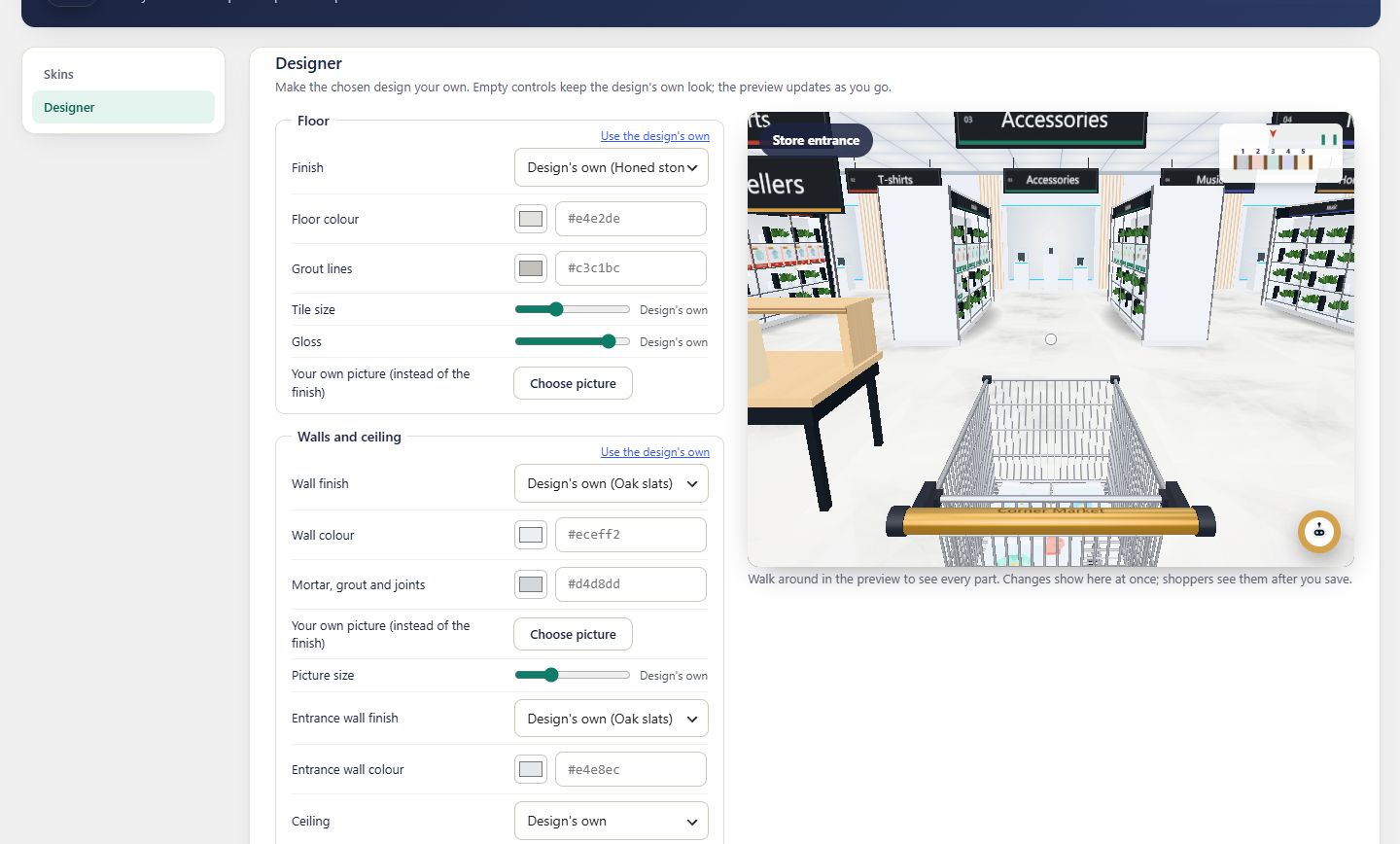
How it works#
- Every control starts empty, meaning the design’s own: the skin’s value shows as the placeholder.
- Change a control and the preview updates at once. Walk around in the preview to see every part.
- Shoppers see the new design after you press Save design.
- Each group has Use the design’s own to empty just that group.
- Reset all to the design’s own brings back the skin as it comes.
Groups#
| Group | Controls |
|---|---|
| Floor | Finish, colour, grout, tile size, gloss, your own picture |
| Walls and ceiling | Wall finish and colours, entrance wall, your own picture, ceiling and lights |
| Colours | Wood (wall slats and ceiling), painted walls and ceilings, dark ceiling |
| Shelving and light | Shelf wood, end panels, shelf light colour and brightness, overall brightness |
| Decor | Plants on the shelving, hanging plants, olive trees, bench |
An overlay on the skin#
Your design is stored on top of the chosen skin. Switch to another skin and the changes that still apply are kept.
Still stuck? Ask in the store (Ava knows the controls) or write to support@aisleza.com. Last updated 2 November 2026.