Ambience
Set the mood: evening or night outside the doors, rain or snow falling past the glass, and quiet background music with a button shoppers can switch off.
Every Pro planThis feature is part of Aisleza Pro. See the plans.
What it changes#
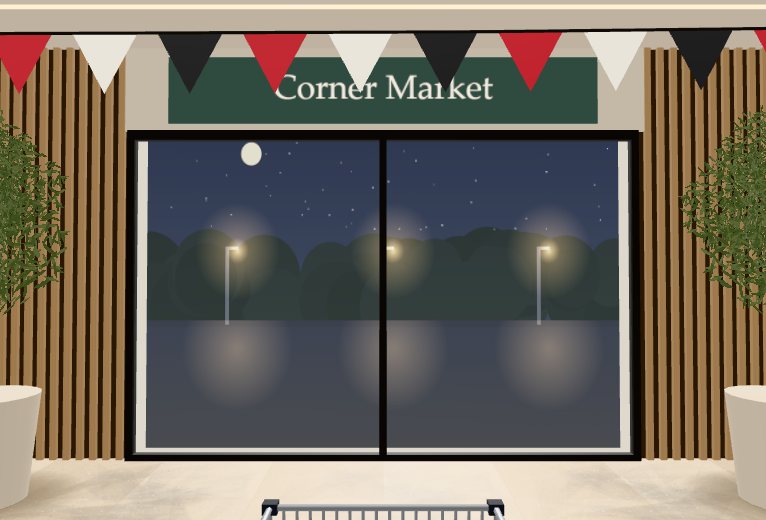
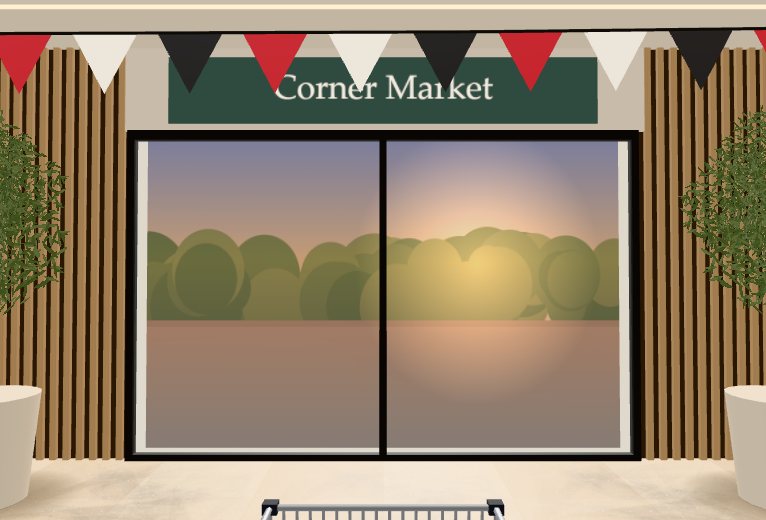
- Light. Evening turns the street outside the doors into a sunset and warms the light in the store. Night gives a dark sky with stars, the moon and glowing street lamps. Follow the shopper’s clock picks day, evening or night from the time where each shopper is.
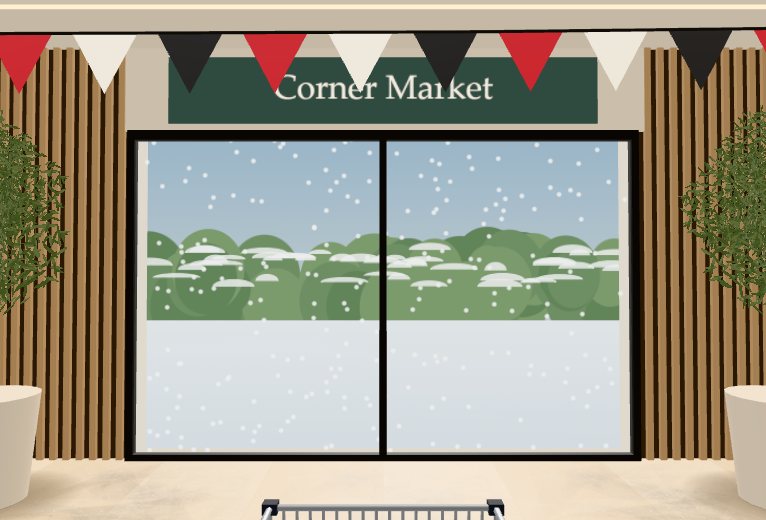
- Weather outside the doors. Rain or snow falls past the glass doors, with wet or snowy ground outside. It only moves while the shopper is near the entrance, so it costs nothing further down the store.
- Music. Calm store music made live in the shopper’s browser (nothing to download), or your own music file. A music button appears on the store’s tool rail so shoppers can switch it on or off, and their choice is remembered on their device.
Set it up#
WooCommerce
Aisleza → Merchandising → Ambience. For your own music, choose an MP3, M4A or OGG file from the Media Library. Press Save merchandising.
Shopify Coming soon
Apps → Aisleza 3D Store → Ambience. For your own music, upload the file in Content → Files and paste its link. Save the page.
Wix
Apps → Aisleza 3D Store → Merchandising → Ambience. For your own music, upload the file to the Media Manager and paste its link. Press Save.
BigCommerce Coming soon
Apps → My apps → Aisleza 3D Store → Ambience. For your own music, paste an https link to the file. Press Save.
Magento
Aisleza → Pro → Ambience. For your own music, choose Your own music file and paste an https link to it. Press Save Config.
PrestaShop
Aisleza → Ambience tab. For your own music, paste an https link to the file. Press Save under the Pro panels.
OpenCart
Aisleza → Ambience tab. For your own music, paste an https link to the file. Press Save Pro settings.
Shopware
Content → Aisleza → Ambience tab. For your own music, upload the file to Content → Media and paste its link. Press Save Pro settings.
Squarespace
In your Aisleza account, Pro settings for your site → Ambience. For your own music, paste an https link to the file. Press Save.
Settings#
| Setting | What it does |
|---|---|
| Light | Day (the skin as it is), Evening, Night, or Follow the shopper’s clock (day 07:00–17:00, evening 17:00–20:00 and 05:00–07:00, night otherwise). |
| Weather outside | Clear, Rain or Snow, seen through the glass doors. |
| Music | No music, Calm store music, or Your own music file. |
| Volume | 5% to 100%. Quiet works best: 25–40%. |
| Start the music | On: the music starts the first time the shopper clicks or taps in the store. Off: it only starts from the music button. |
Browsers never play sound before the shopper does something on the page, so the music always waits for the first click, tap or key. A shopper who switches it off won’t hear it again on that device until they switch it back on.
Use music you have the rights to play in public. The calm store music is made by Aisleza and is free to use in your store.
Good ideas#
- Winter: snow outside, with the Christmas decorations from Seasonal.
- Late-night shoppers: Follow the shopper’s clock shows them a night street when they visit after dark.
- A calm boutique: calm store music at 25% with Start the music off, so only shoppers who want it hear it.