3D products and mannequins
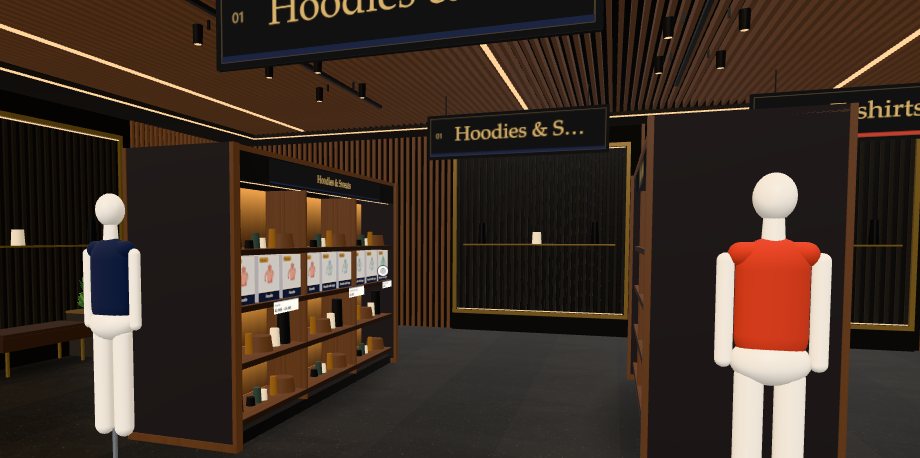
Show real 3D models on the shelves instead of the product photo boxes, and put dressed mannequins at the clothing aisles.
Every Pro planThis feature is part of Aisleza Pro. See the plans.
3D models on the shelves#
Give a product a 3D model (a .glb file) and the shelves show the model in that product’s places instead of its photo box. Shoppers click it like any product, and its price tag stays on the shelf edge.
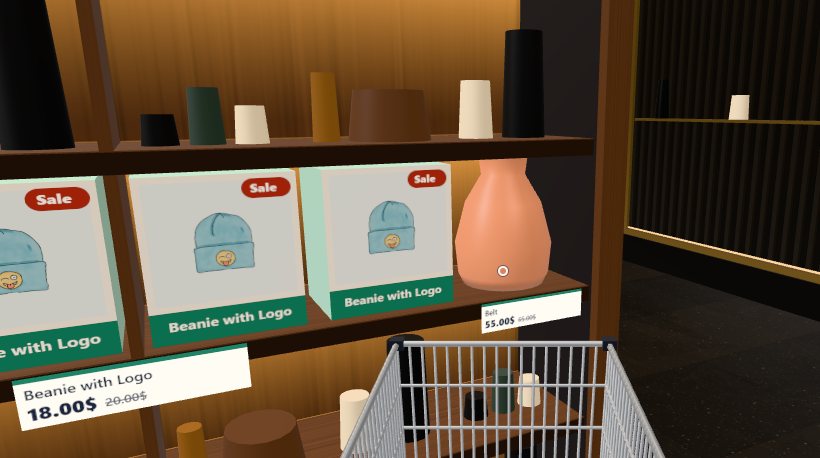
- Use .glb files (binary glTF), up to 15 MB. Under 2 MB loads fastest; most product models from 3D scanners or online model shops can be exported to .glb.
- The model is scaled to fit the shelf space and stands on the shelf facing the aisle.
- If a model can’t load, the photo box stays, so the shelf is never empty.
Mannequins#
Choose At the clothing aisles and a mannequin stands in front of the shelf end at the mouth of each clothing aisle, wearing the aisle’s colour. Clothing aisles are found by their names (clothing, fashion, dresses, shirts, tees, hoodies, jackets, coats, jeans, men, women, kids and similar). At every aisle puts one at every aisle. A shelf end that already holds a display or a video advert keeps it.
Set it up#
WooCommerce
Models: edit the product, then Product data → General → 3D model (Aisleza), choose a .glb file from the Media Library and update the product. Mannequins: Aisleza → Merchandising → 3D products.
Shopify Coming soon
Apps → Aisleza 3D Store → 3D products. Upload the .glb in Content → Files, then add a row with the product’s SKU or exact name and the file’s link. Choose the mannequins below.
Wix
Apps → Aisleza 3D Store → Merchandising → 3D products. Upload the .glb to the Media Manager, then add a row with the product’s SKU or exact name and the file’s link.
BigCommerce Coming soon
Apps → My apps → Aisleza 3D Store → 3D products. Add a row with the product’s SKU or exact name and an https link to its .glb file.
Magento
Aisleza → Pro → 3D products. Add a row with the product’s SKU or exact name and an https link to its .glb file, and choose the mannequins.
PrestaShop
Aisleza → 3D products tab. Add a row with the product’s reference or exact name and an https link to its .glb file.
OpenCart
Aisleza → 3D products tab. Add a row with the product’s SKU (or model) or exact name and an https link to its .glb file.
Shopware
Content → Aisleza → 3D products tab. Upload the .glb to Content → Media, then add a row with the product number or exact name and the file’s link.
Squarespace
In your Aisleza account, Pro settings for your site → 3D products. Add the product’s SKU or exact name and an https link to its .glb file.
Tips#
- Start with a few hero products: three or four models in the entrance aisle make a big impression without slowing the store.
- Real-world size doesn’t matter: models are scaled to the shelf, so a ring and a lamp both fit.
- Light, simple models look best: fewer than about 50,000 triangles and textures up to 2048 pixels.